
Do you have an event you would like to share with your WP Engine & Flywheel Family? Excellent! Here’s the guide on how.
TLDR;
- Login or Register with wpengine.live
- Add new event
- Publish to Events Calendar!
Login with wpengine.live
If you have not registered just yet, then click the link below to to so.
You must create a user with your company email.
You should receive a confirmation email once registered. With it, you can setup a password and proceed to login at https://wpengine.live/wp-login.php
Add New Event
Once logged in, navigate to the Events tab.
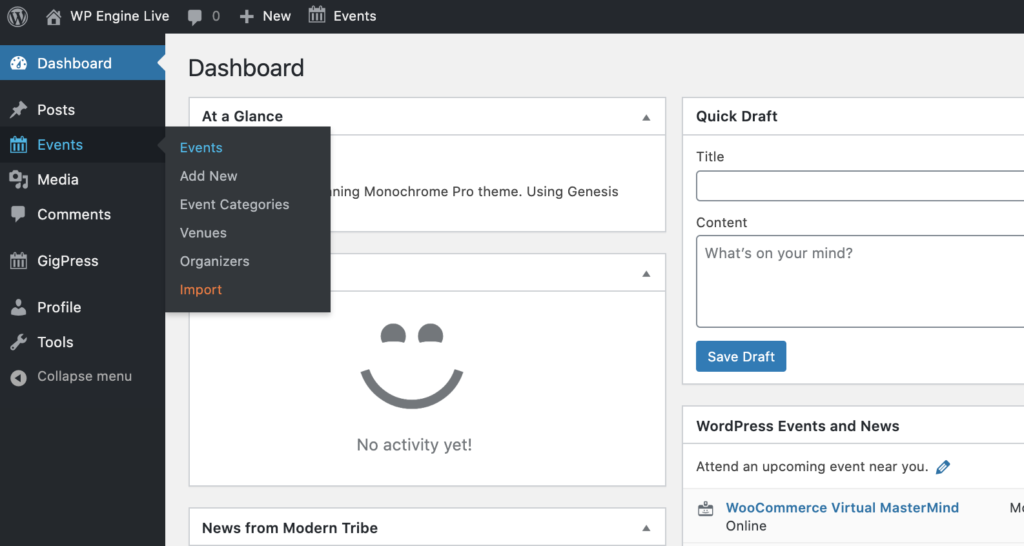
Select “Add New”
In your Event, fill in as much detail as required to participate in your event. A featured image is optional but not required.
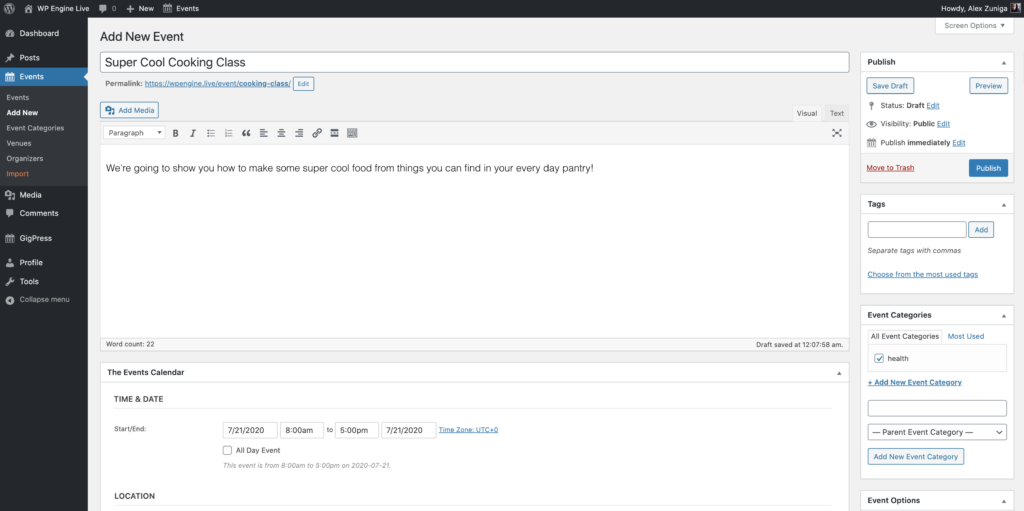
SET THE RIGHT TIME!
Due to our global organization, a time zone will be needed for your event. If you dont know your timezone in relation to UTC, you can find it here!
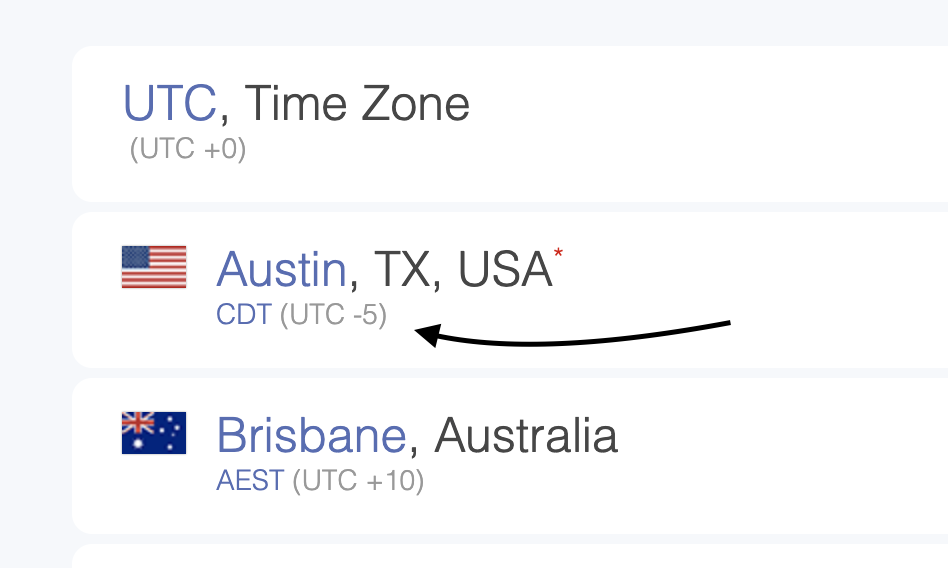
Use the (UTC +/- # ) value when selecting your timezone in the Events Editor. This will be very important when others add your event to their respective calendars.
PUBLISH YOUR EVENT
When you’re ready, click the blue PUBLISH button in the top right of the page. The event will be added to the event calendar on the homepage of the website. It will also have it’s own event page with a link you can DM to specific people.
Viewers can subsequently add specific events of interest to their calendar.